|
<< Click to Display Table of Contents >> Recording a Patrol |
  
|
|
<< Click to Display Table of Contents >> Recording a Patrol |
|
From the main menu pressing the Patrol button will allow the user to record a patrol round:
Starting a patrol
1.Pressing the Patrol button will place the device into idle mode. A patrol to be conducted can be started by reading any tag at the location. This can be a patrol location point or the locations specific tag.
a.A tag is read by holding the devices RFID reader close to the tag.
2.As soon as the device has read a tag it will identify the location it is assigned to and display the location name as it is recorded in PeopleHours.
a.The Type of patrol to be recorded can be selected by pressing Select A Patrol or the process can be canceled by pressing the back arrow at the top of the screen.
3.A list of the patrols that are set for the location will now be displayed allowing the user to press and select the one to be recorded.
a.Patrol Types are set from within PeopleHours and can contain all or some of the patrol points assigned to the location.
b.Patrol Start Time details the day / date and time the patrol is scheduled to commence.
c.Patrol Finish time details the day / date and time the patrol is expected to be completed.
d.A patrol can be started an hour before its scheduled start or an hour after its scheduled end
4.The screen will now display:
a.The location name.
b.The patrol type
c.The Start Patrol button.
d.The number of patrol points expected in the patrol type
e.The individual patrol points are listed at the bottom of the screen.
5.Pressing Start Patrol will place the device into read mode.
a.Individual tags can be recorded by placing the devices RFID reader close to the tags. Once a tag has been read it will make a *sound (*device dependent) and the black arrow icon will change to a green tick. Tags that are expected and have been read successfully will be moved to the bottom of the list.
6.Once all of the expected patrol tags in a patrol type have been read the user can press the End Patrol button. A confirmation screen will be displayed and pressing Finish Patrol will end the process and return the user to the main menu.
7.If a patrol is finished when there are still patrol points listed in the patrol type that have not been read a notice is displayed. The user can press Continue Patrol and read the missing patrol points or...
a....enter a reason for the incomplete patrol and press Finish Patrol. The reason entered will be added to your patrol record within PeopleHours.
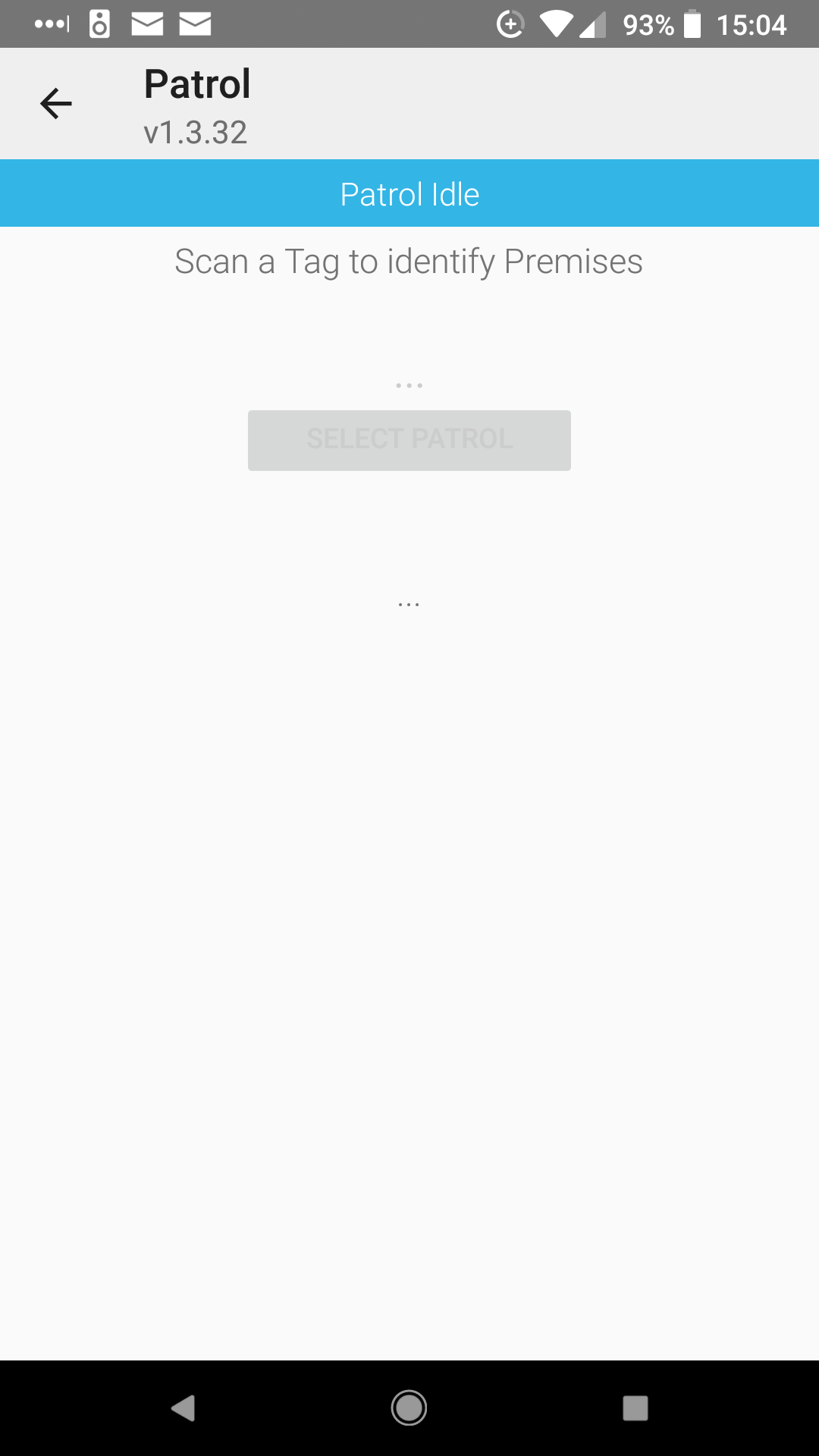 1 Starting a patrol |
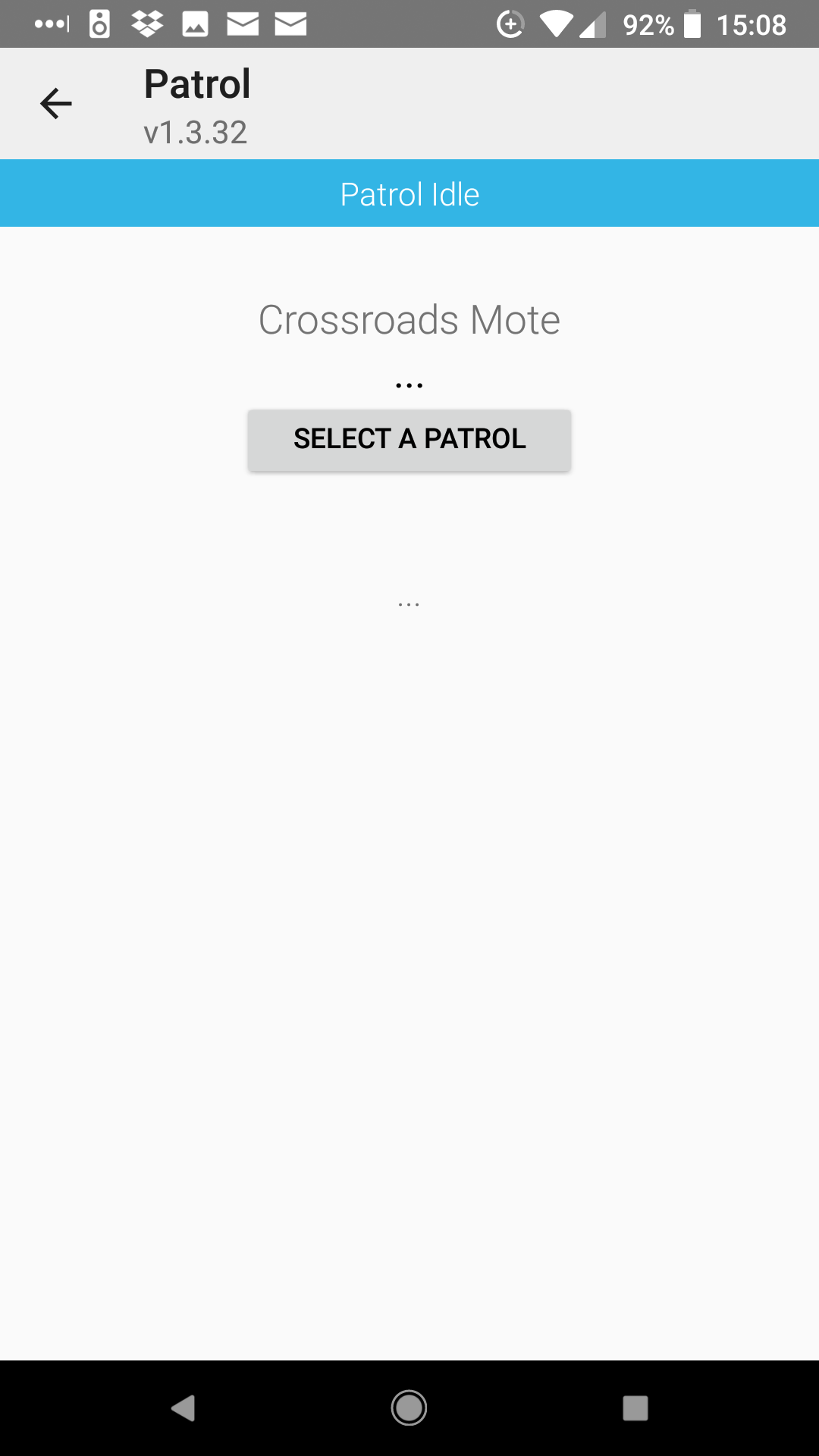 2 Starting a patrol |
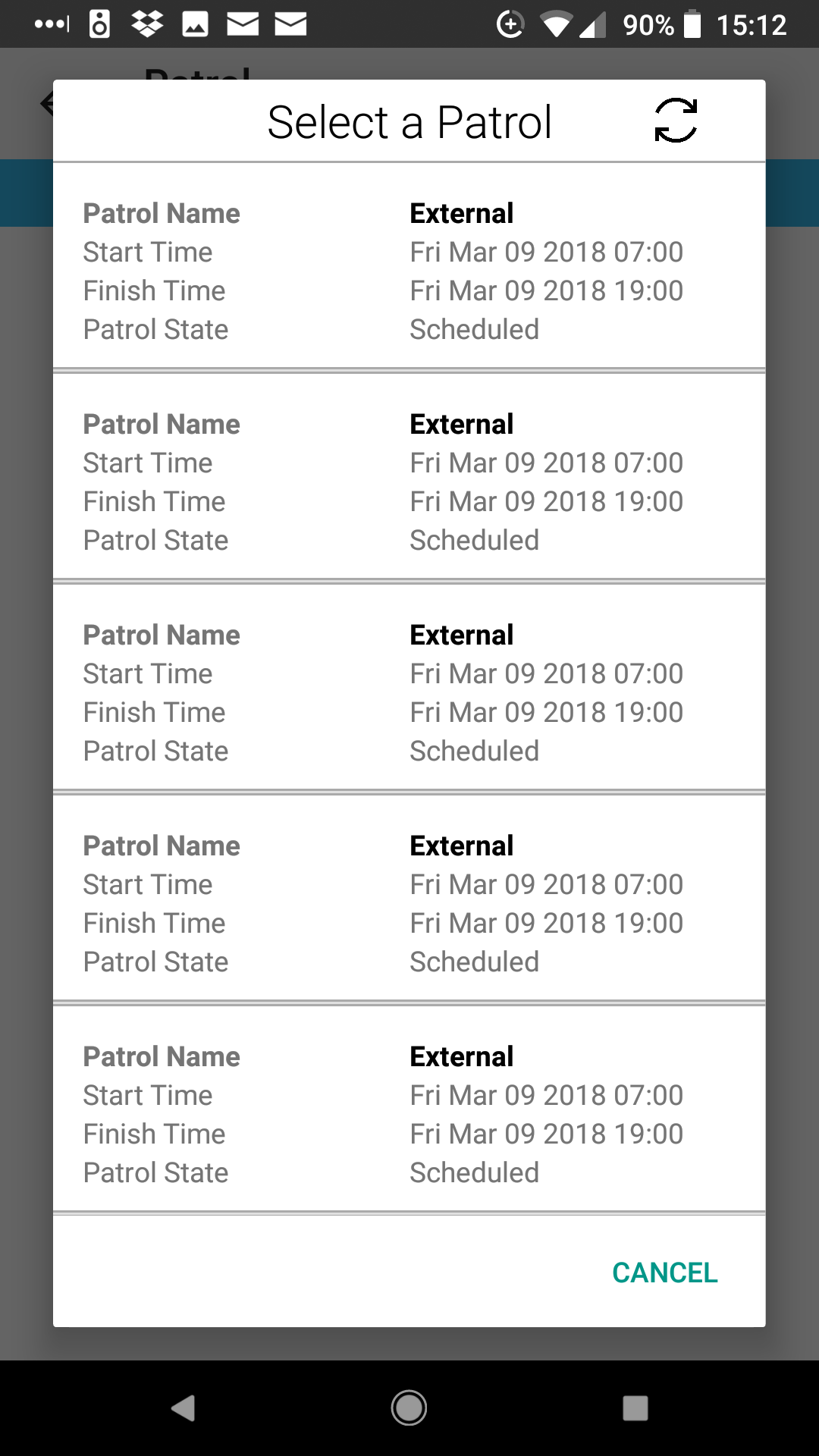 3 Selecting a patrol typel |
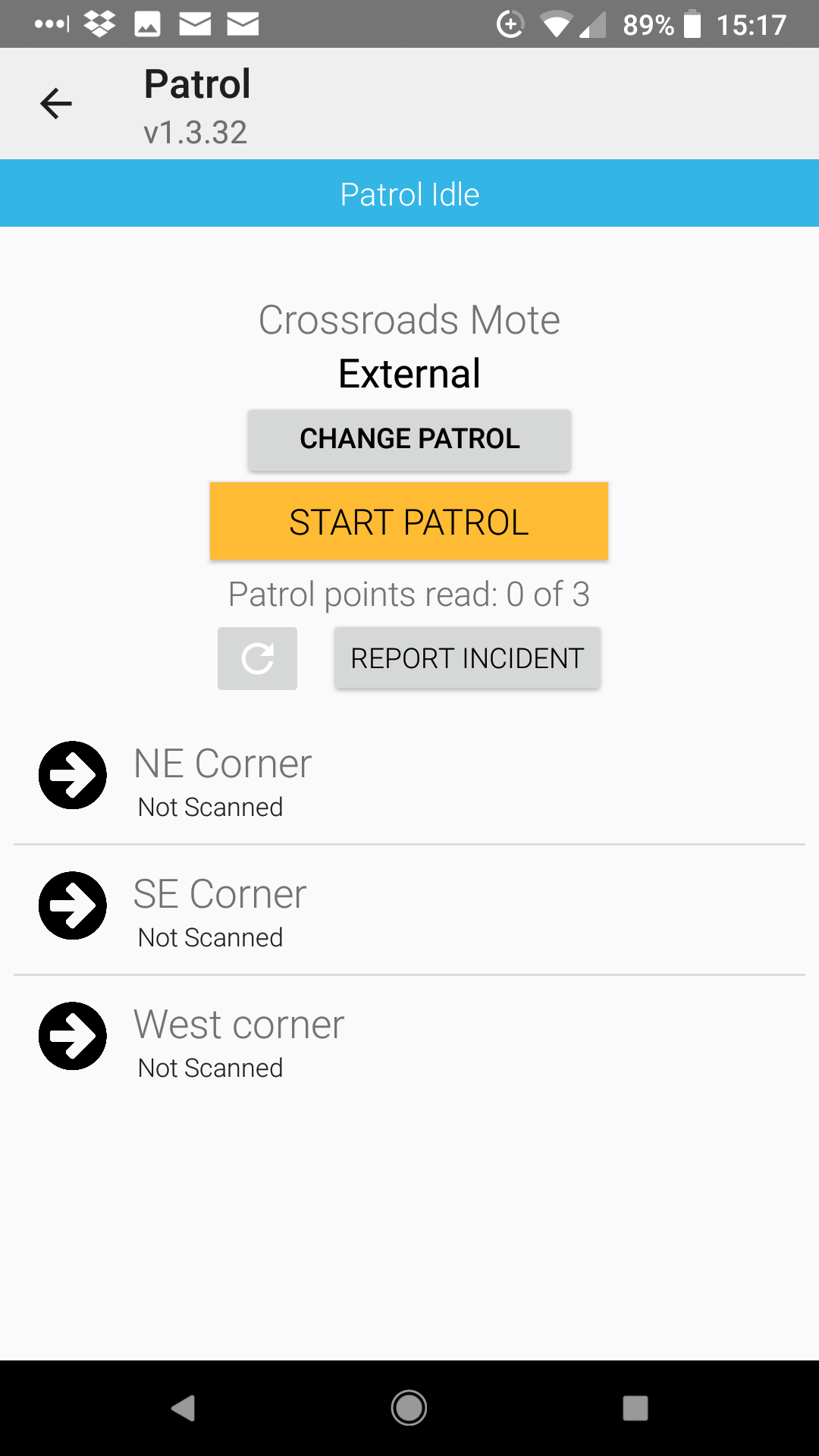 4 Starting the patrol |
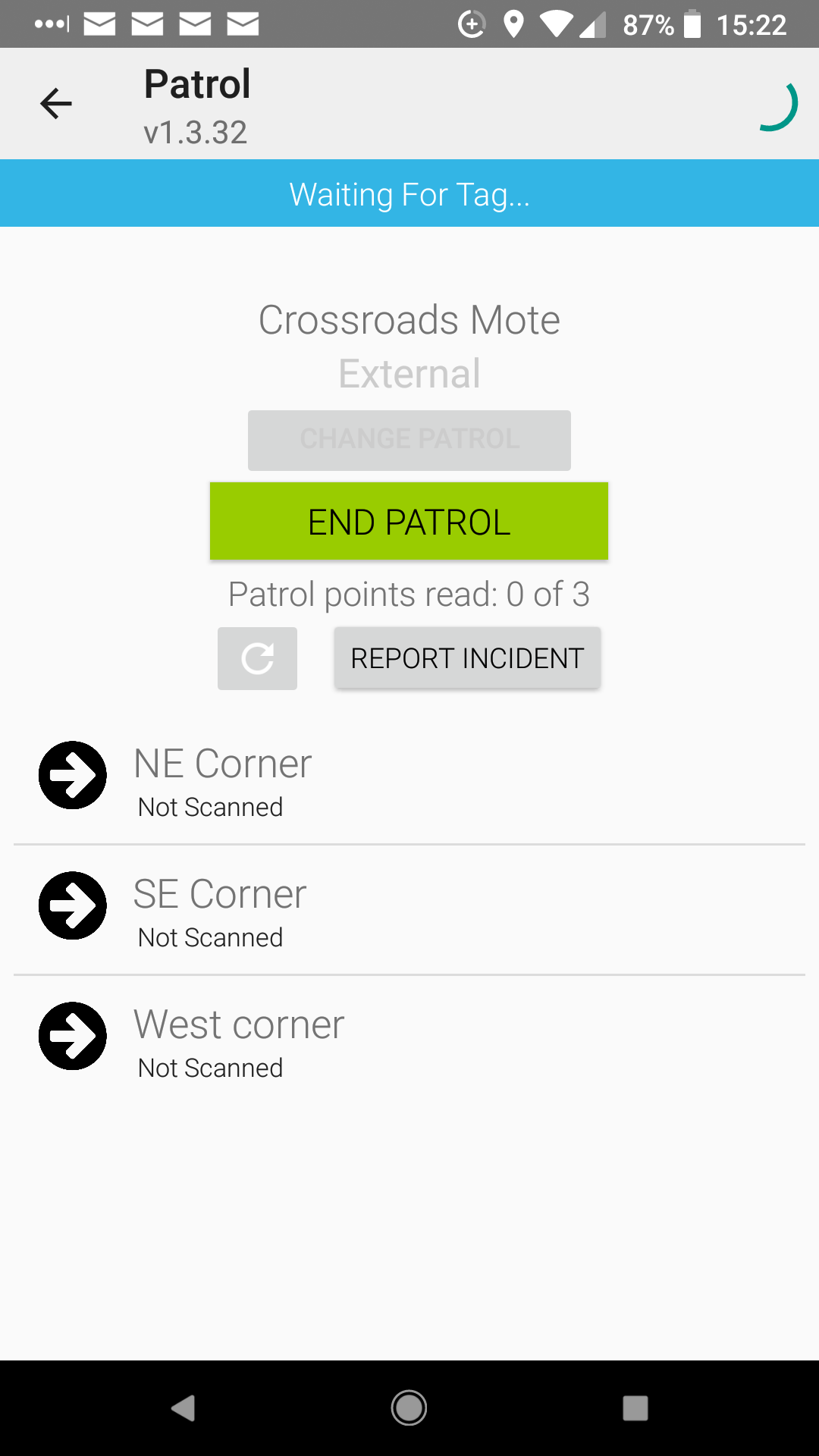 5 Recording the patrol |
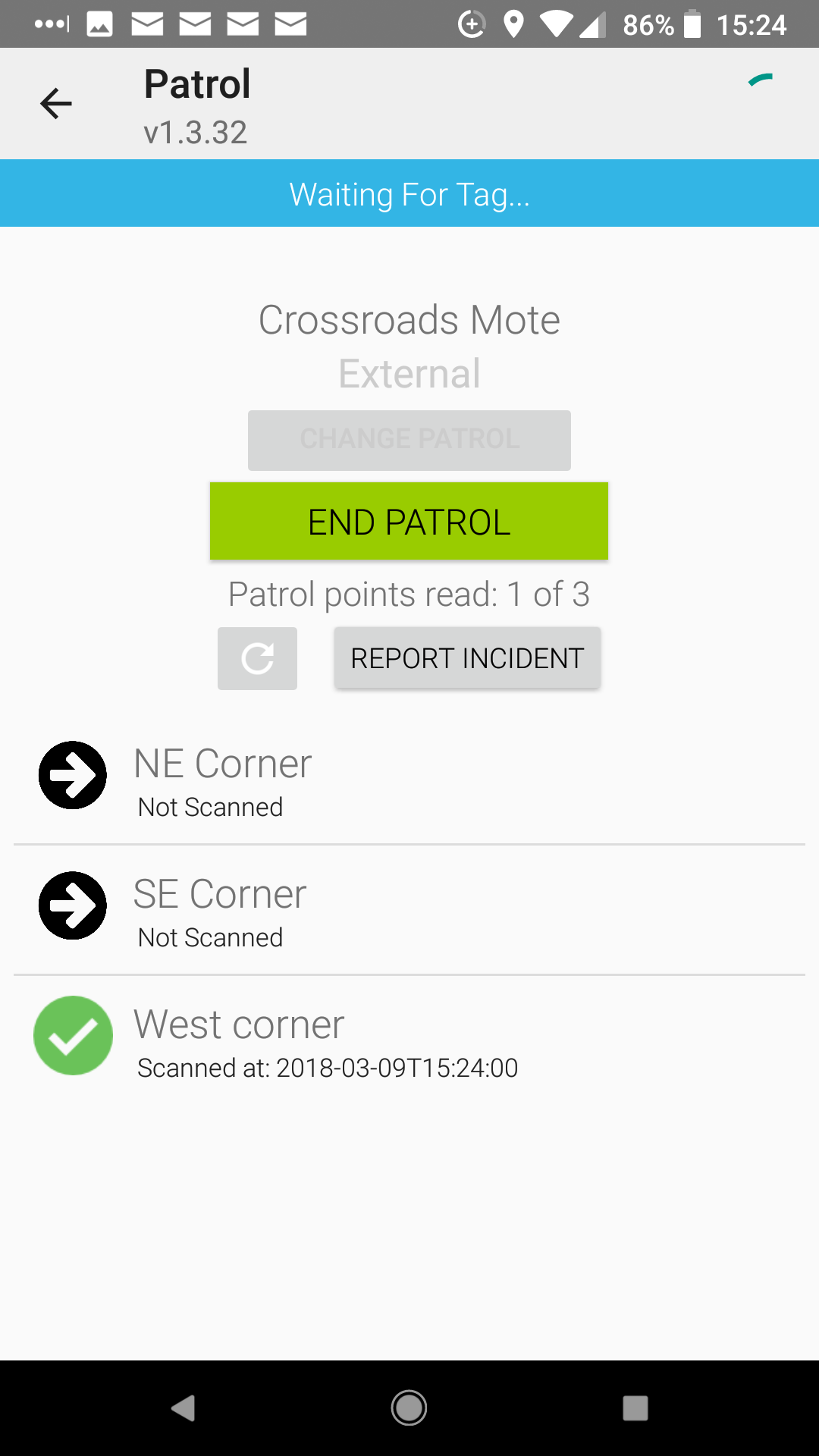 5a Recording the patrol |
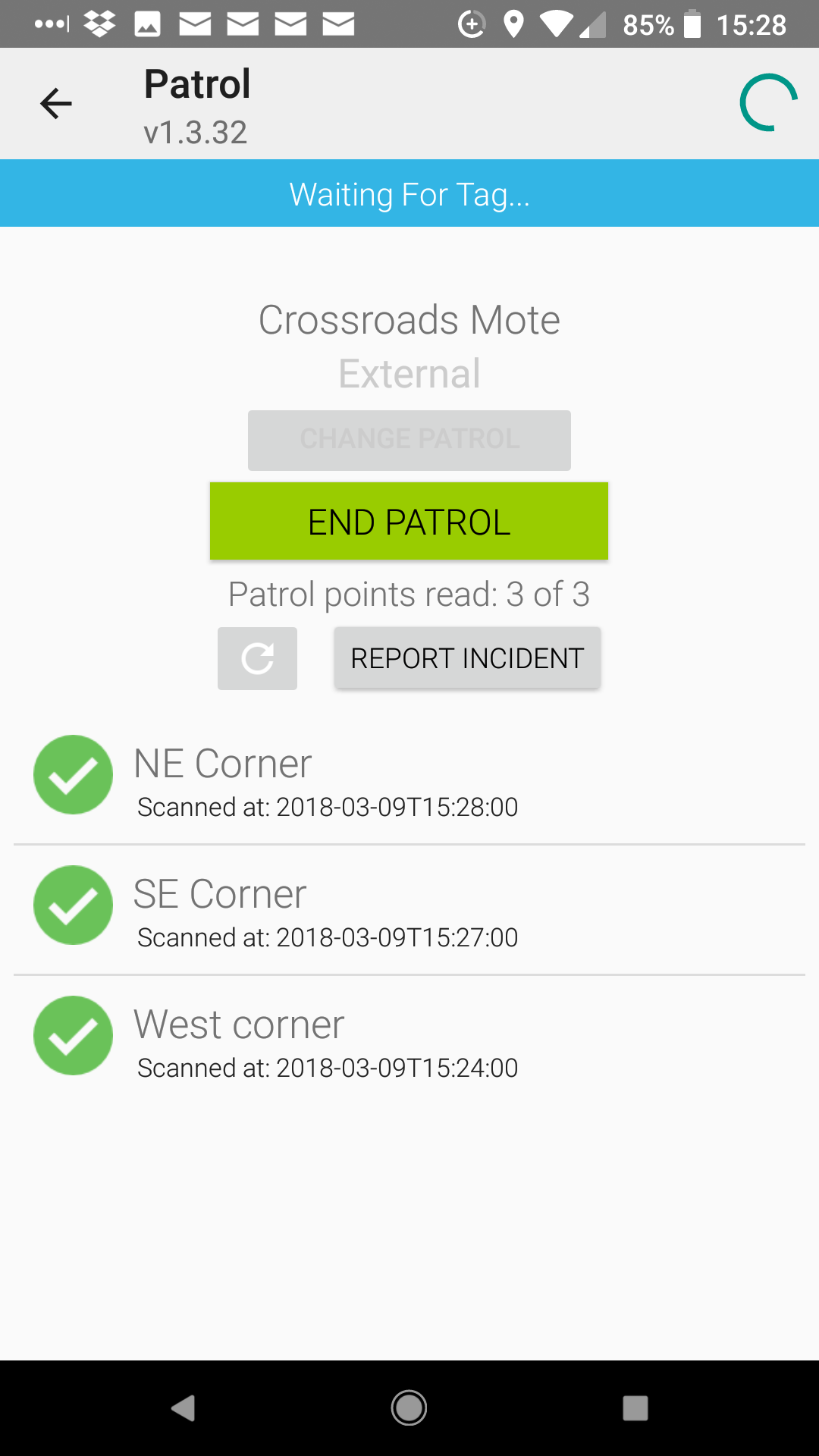 6 Finishing the patrol |
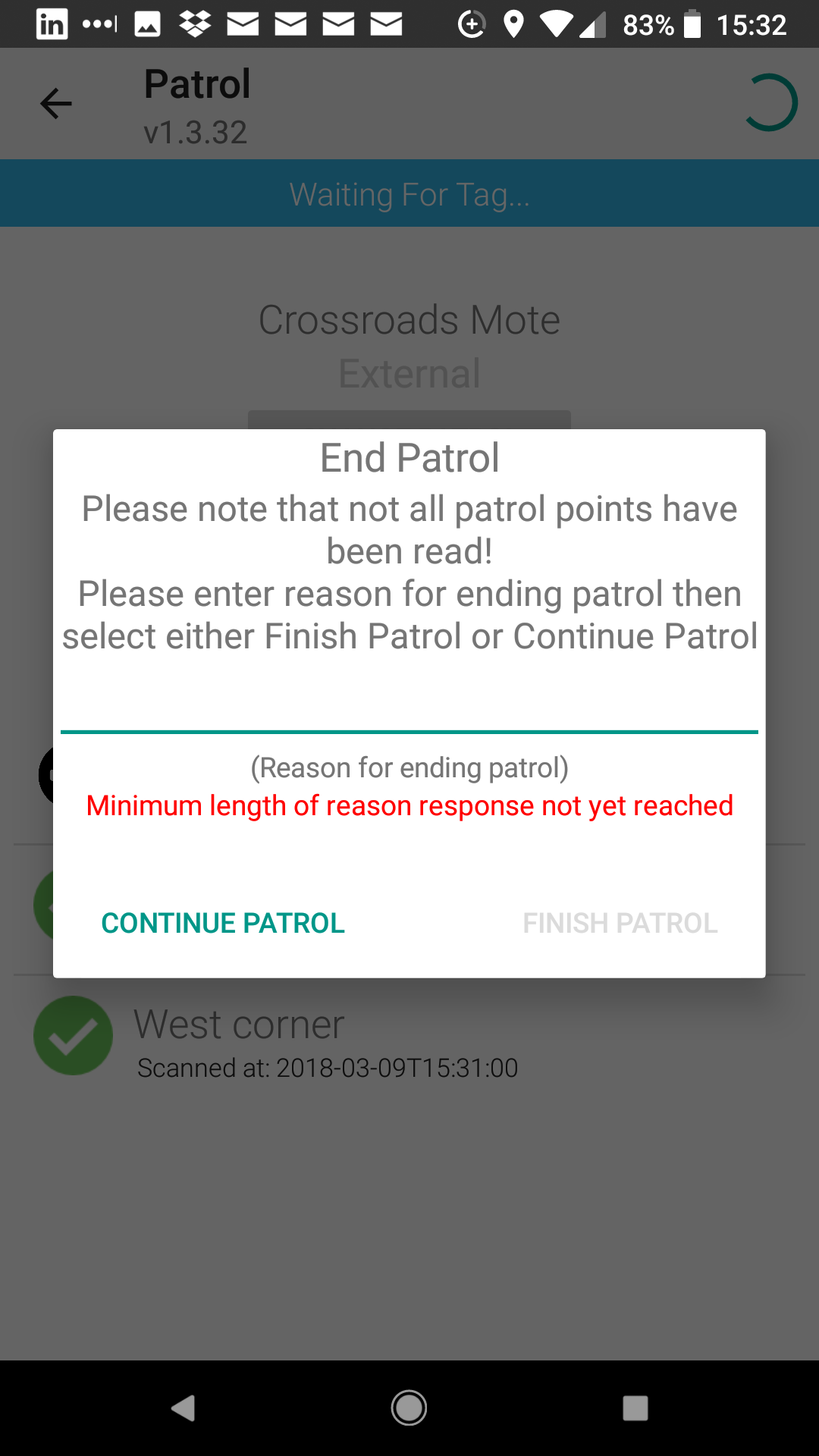 7 Patrol points not read |
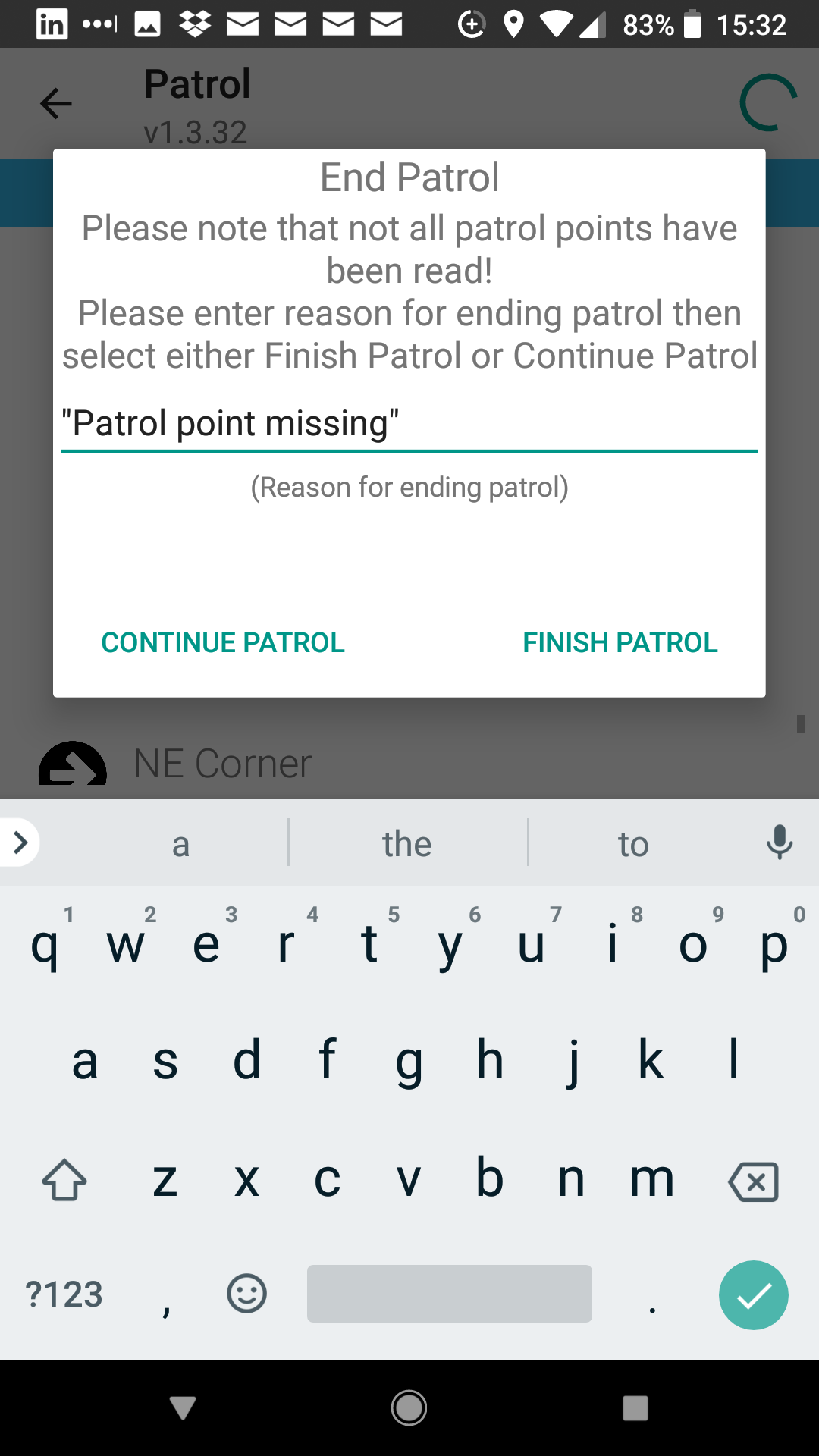 7a Reason for not reading a patrol point |
Note that the Report Incident button can be pressed at any time during the patrol to start the Incident function. Incidents reported in this way will be attached to patrols in schedule, not employee duties.