|
<< Click to Display Table of Contents >> WorkMonitor |
  
|
|
<< Click to Display Table of Contents >> WorkMonitor |
|
From the main menu pressing the WorkMonitor button will start WorkMonitor:
WorkMonitor
The WorkMonitor function displays a version of the main WorkMonitor screen in PeopleHours.
It lists all pending duties where employees have a scheduled ON, OFF or CHECK call due.
Duties are listed detailing the Location, Employee, Call Type, Time and call Window.
Duties in red indicate that the call is overdue
Duties in amber indicate that the start time has passed but the call is not yet considered overdue.
Duties in green indicate that the post time window for the duty start has been reached and the call can be taken.
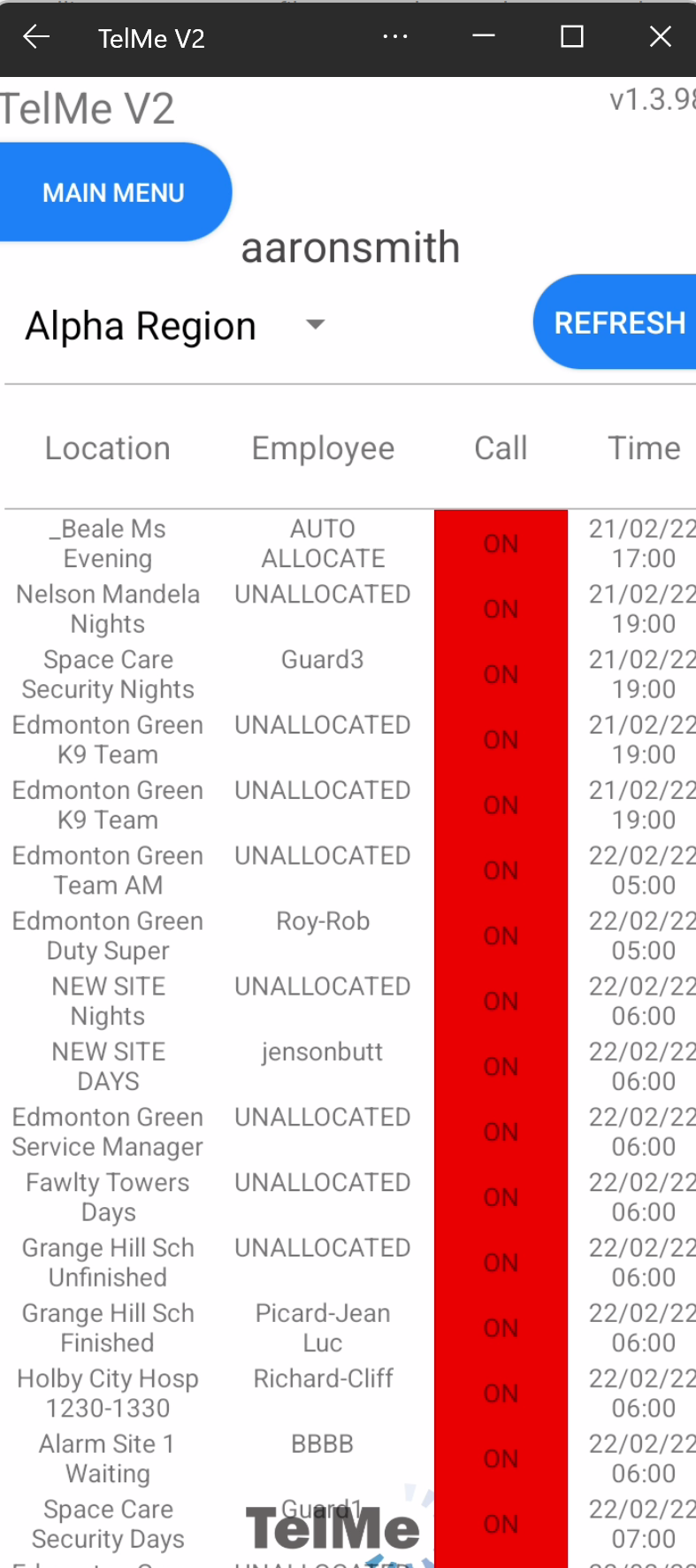 WorkMonitor View |
Pressing on a duty will open the duty details screen.
The duty screen is separated into sections:
Duty Time: Details the start date and time and the end date and time of the duty.
Clicking on the start or finish time will allow you to edit the times, press change to apply the updated time.
Duty Details: Details more information regarding the duty.
Employee Details: Details the employee assigned to the duty. Pressing change will open the employee selection screen.
The search branch can be selected from the drop down list at the top of the screen.
Typing into the search field will show a shortlist of matching employees for allocating to the duty.
You can then "update and take" the call, "cancel" the action or "update" the record only.
Take Call: The book ON or OFF or CHECK call can be completed by pressing the "Take Call" option or cancelled by pressing "Cancel"
Your employer may have defined one or more "reasons" to assign to the action and you can also add a comment to be recorded against this action.