|
<< Click to Display Table of Contents >> Duty |
  
|
|
<< Click to Display Table of Contents >> Duty |
|
From the main menu pressing the Duty button will open the following screen:
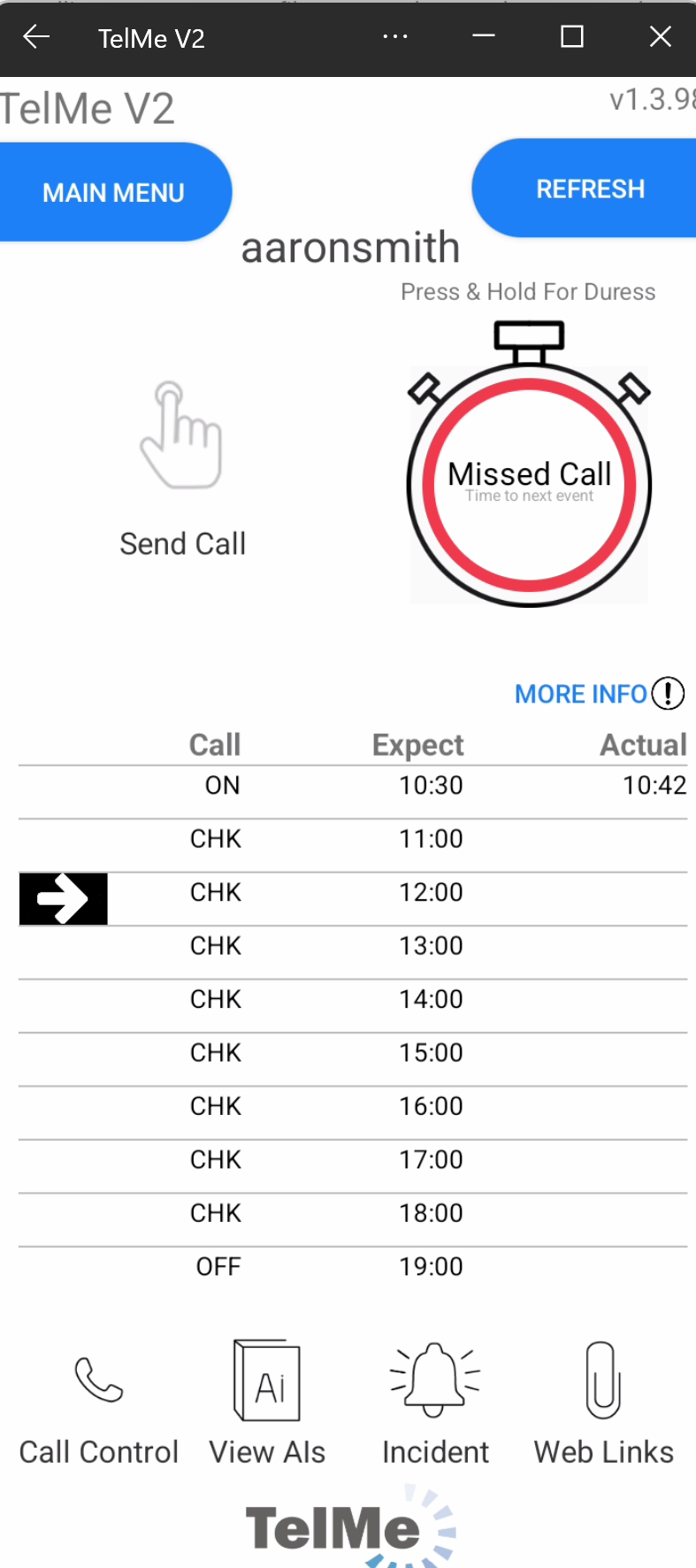 Duty Details |
 More Info |
Pressing the More Info link will open an additional information window
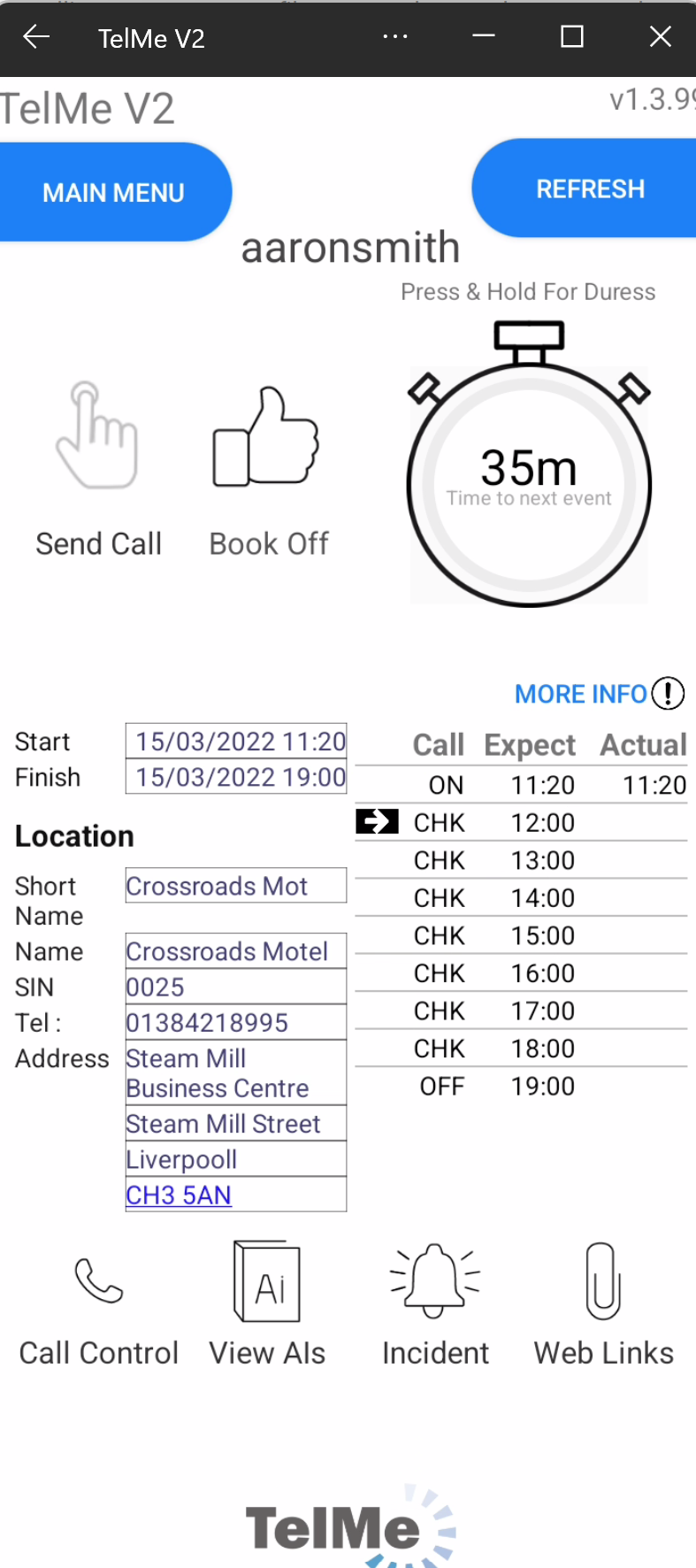
The TelMe Duty screen provides details relating to your next or current duty including the following:
The duty start and finish times.
The location address including post code which if pressed will open your devices default map application allowing you to plan your route or view traffic conditions or journey times.
The circular countdown timer details the time until the next call event, ON duty, Off duty or CHECK (CHK) calls.
The timer will change colour to indicate when the next call can be made or if it has become overdue.
If the time in the duty circle is green then the Send Call button will be available and pressing it will confirm the event.
For an ON call this will start your duty.
For a CHK call this will confirm your status.
For an OFF call this will end your duty.
The "Send Call" button will be marked unavailable if the next event is either too early or too late for the call to be made.
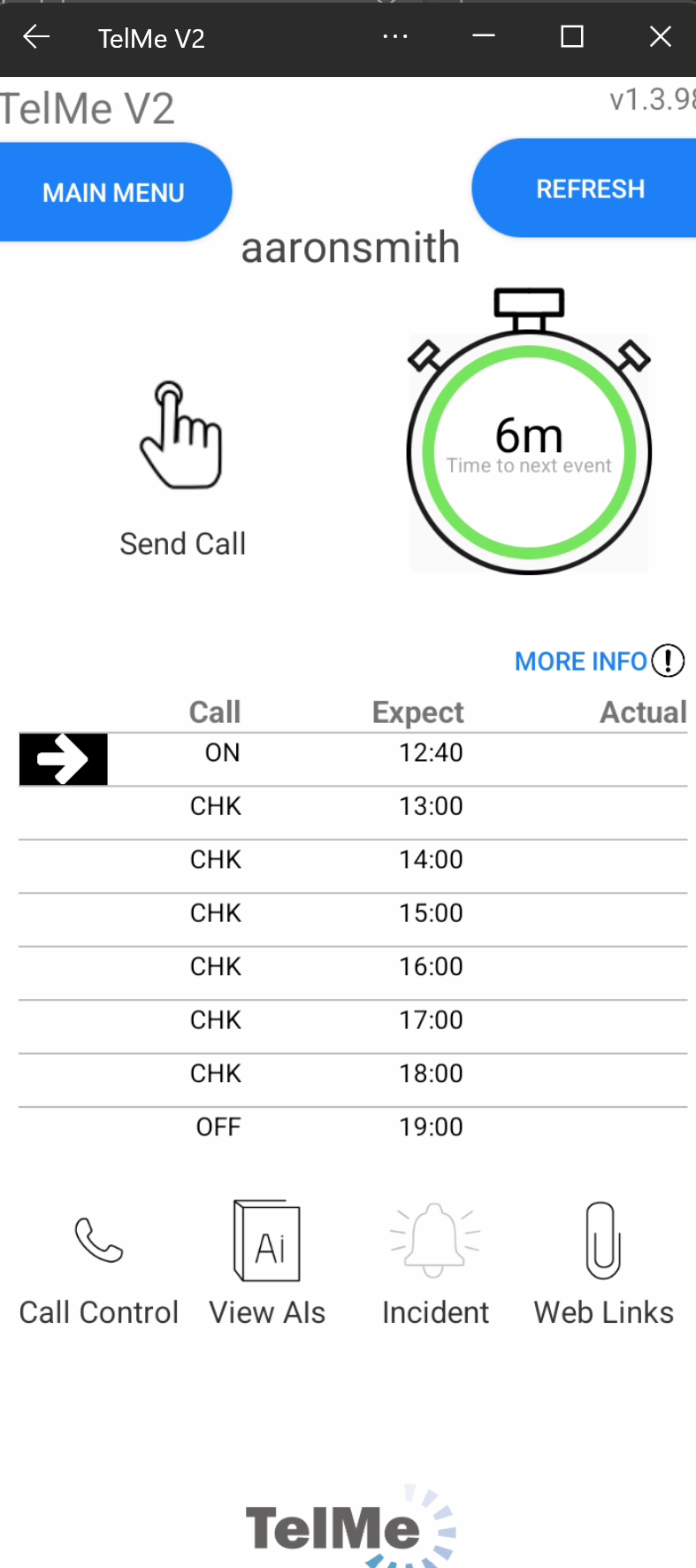 Call due |
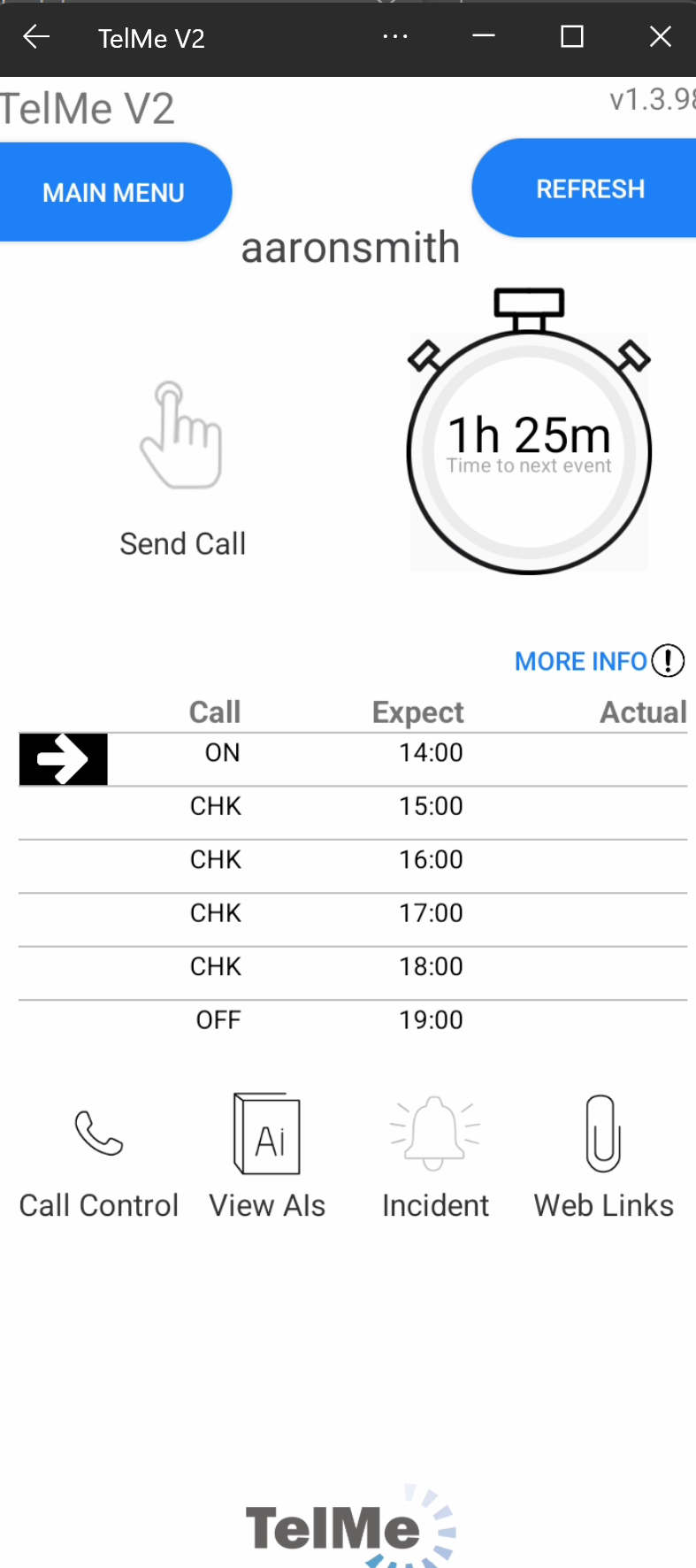 Call not yet due |
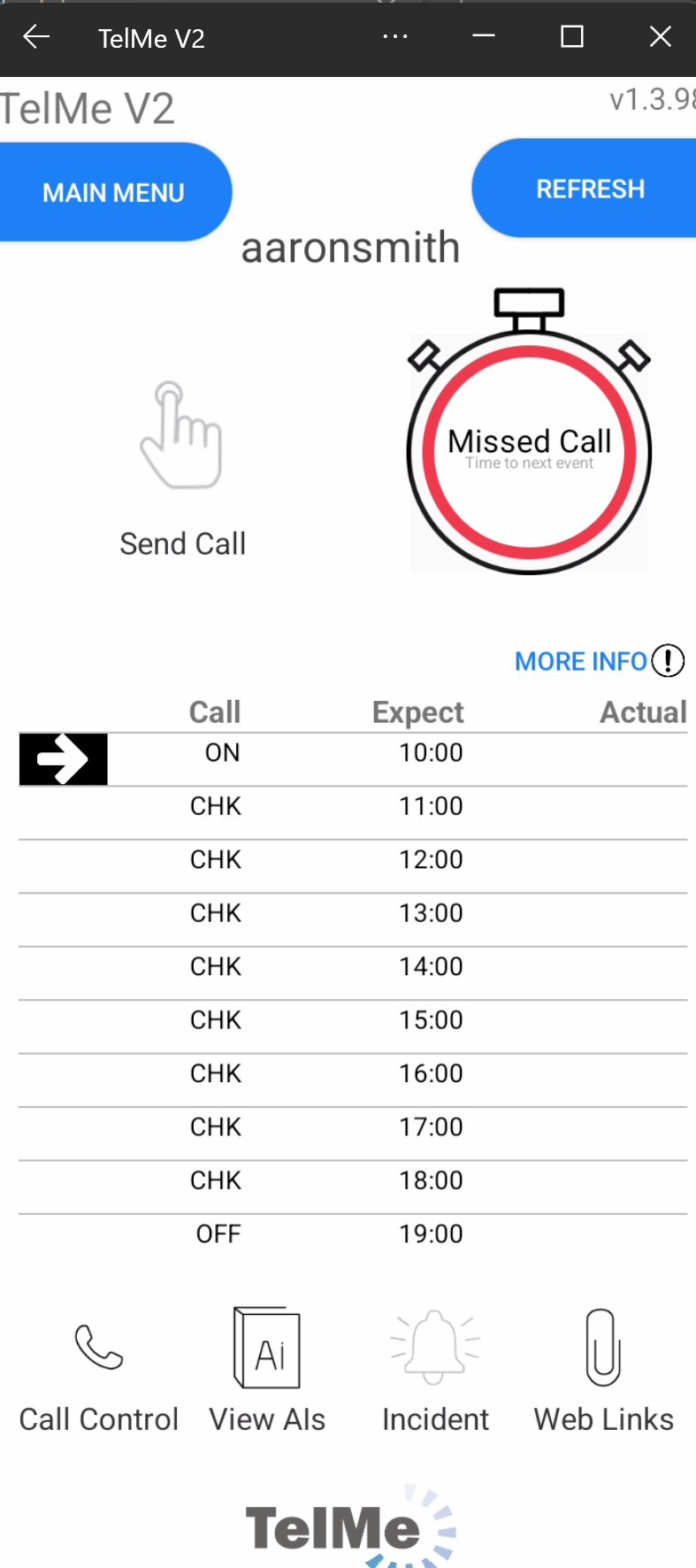 Call overdue |
 Call overdue |
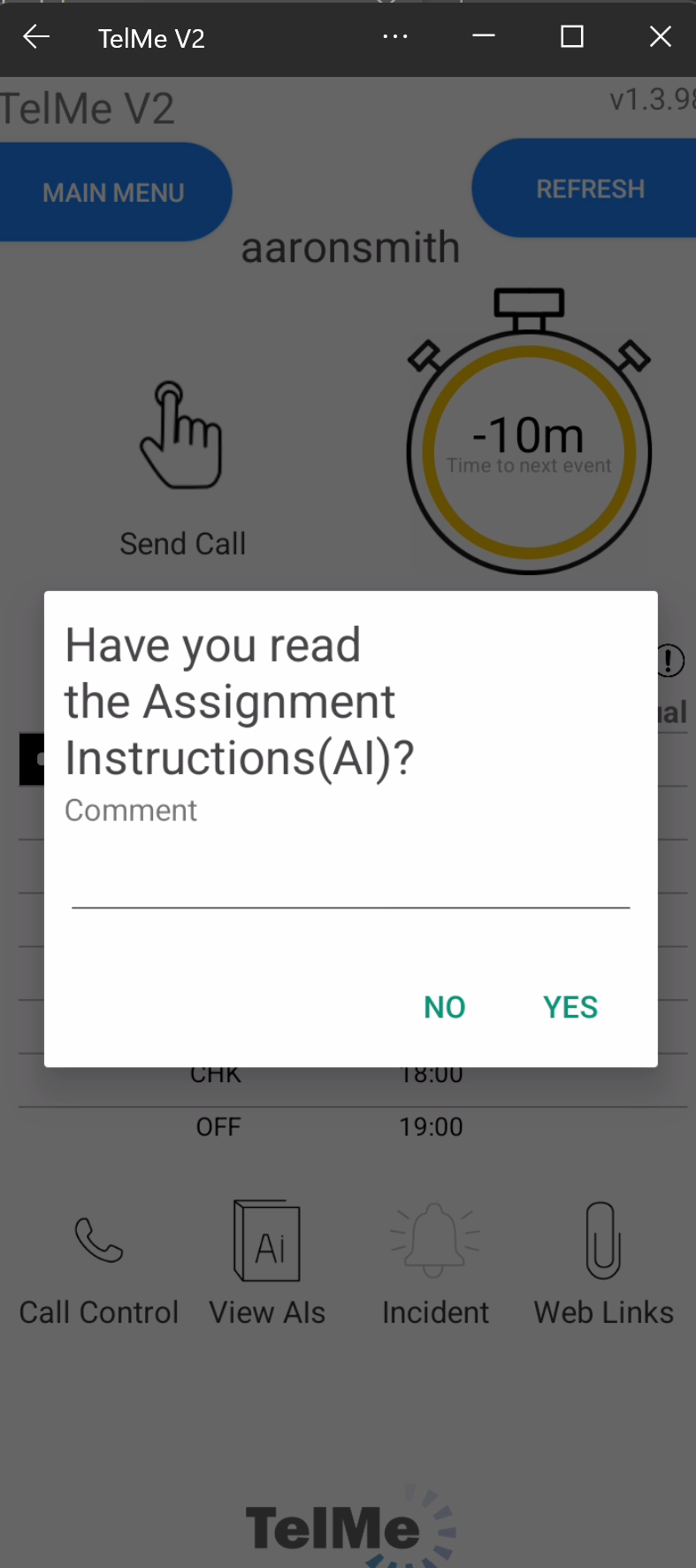
Note that your employer may ask you to confirm hat you have read the Assignment Instructions when booking on duty.
You an select YES or NO and add an optional comment.
A list on the right hand side of the screen details calls due and made with both expected and actual times recorded.
If your employer or their Control Room records any calls directly within PeopleHours then this will cause the call event list to update within your app automatically.
The following information and functions are also available or planned for you.
Call Control |
Will cause your telephone to call your Control Room voice line. This number is programmed by your employer. (Your standard network charges will apply) |
View AI's |
If your employer has made the duty assignments instructions available pressing this button will open them using your devices default application for the file type. |
Will open a text box allowing incident details to be entered. All submitted incidents are written to the main PeopleHours database. |
|
If your employer has provided links to internet resources they will be listed in this section. |
|
If enabled by your employer this function will generate a silent duress alarm |